What does uncompressed WAV mean?
WAV is a common audio file format. YBLooper writes 16-bit PCM audio: the samples are stored without the lossy compression used by formats such as MP3. This makes the saved file useful for further editing in software that supports WAV.
The format preserves the recorded audio; it does not remove room noise, clipping or limitations of the microphone. A good input level and a clear source are still the starting point for a good recording.
1. Save your recording
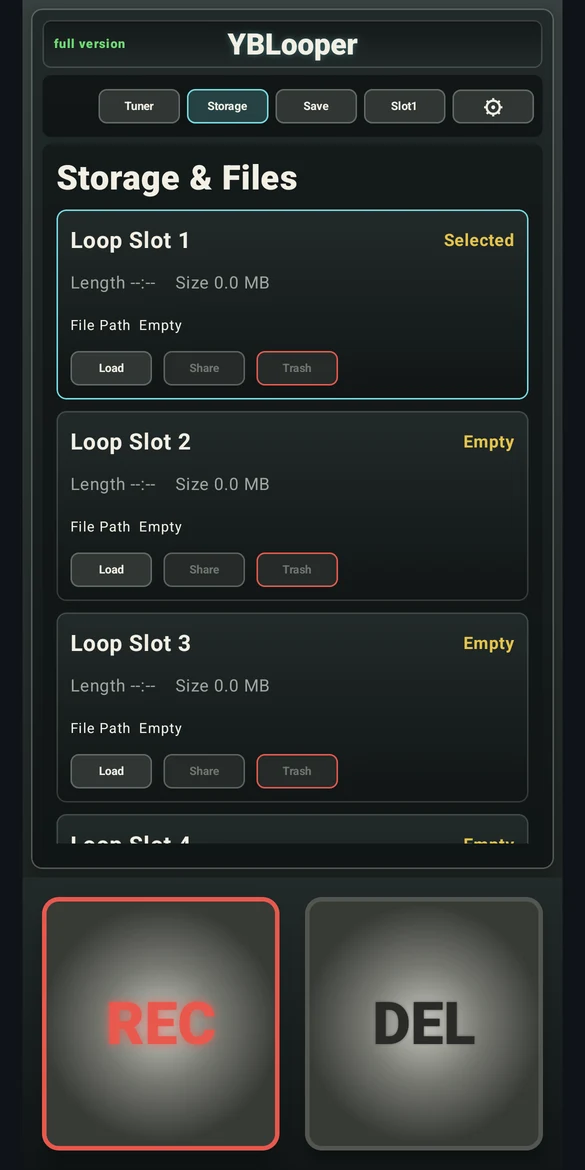
Record a loop in YBLooper and listen back. Choose the loop slot you want to use, then select Save. The app provides five slots for saved loops and practice setups.
Open Storage and check that the slot contains the take. Use Load to return to a saved loop. Share important recordings to a backup location before overwriting or deleting a slot.
2. Share the original file
Select Share for the saved loop. Android will offer compatible destinations such as a file-transfer app, email or cloud storage.
For editing, transfer the original .wav file. Some messaging services convert media or provide a compressed playback copy. Where a choice exists, send the recording as a file or document, then check the downloaded file’s extension.
3. Import it into your DAW
- Transfer the WAV file to your computer.
- Open a project in a DAW that supports WAV audio.
- Use its audio import command or drag the file onto an audio track.
- Listen to the clip and align it to the project timeline.
- Trim, arrange or process the recording as your project needs.
4. Keep a copy outside the app
Give the transferred file a useful name, such as verse-idea-90bpm.wav. Keep a second copy of takes you do not want to lose. Deleting a saved loop or removing app data may remove local recordings.
Share when you choose
Saving an idea in YBLooper does not publish it to a feed. You choose when to send a saved file through another app. See the privacy policy for information about app data, advertising and third-party services.
Want a repeatable routine for capturing the next idea? Read how to practice guitar with an Android looper.